How to track caffeine and water on Apple Watch
Apple Health has a place for both water and caffeine, but Apple Watch has no built-in way to log either one, and no complication that shows how much you've had today. This guide covers the free option, what to look for in an app, and how to log a drink from your wrist and keep the day's totals on your watch face.
The free option: the Health app on iPhone
You can log a drink by hand in the Health app on your iPhone:
- Open the Health app and search for Water (or Caffeine).
- Tap Add Data, enter the amount, and tap Add.
Water is recorded in millilitres or fluid ounces, and caffeine in milligrams. It works, but it means reaching for your phone every time, and the totals stay inside the Health app.
Choosing an app
Look for an app that writes to Apple Health, so your drinks stay in one place and other apps can use them. If you only track water or only track coffee, an app built around that one drink, such as WaterMinder, Waterllama or HiCoffee, may suit you well. If you also track other things, like weight or blood pressure, one app that handles any Health data type saves you juggling several.
Logging a drink from your wrist with HealthFace
HealthFace logs water, caffeine and any other Health data type straight into the Health app, from your iPhone, iPad or Apple Watch.
- Open HealthFace on your Apple Watch and tap Water or Caffeine in the list. You choose which data types appear in this list in the iPhone app.
- Turn the Digital Crown, or use the − and + buttons, to set the amount. It starts at the amount you logged last time, so a repeat drink is often just a tap.
- Tap Save. The drink goes straight into the Health app.
To make it quicker, set up a complication (below) and change its Tap Action to that drink. Tapping the complication on your watch face then opens straight to logging.
Seeing today's totals at a glance
A water or caffeine complication shows your total for the day so far. It resets at midnight, and you can change the range to the current hour, a week, or since a set time.
- In HealthFace on your iPhone, go to the Apple Watch tab.
- Choose a shape. Circular and Corner work well for totals, because they can show a gauge.
- Tap Add Complication and choose Water or Caffeine.
- Under Target, enter a daily goal. For water, that might be 2 litres or 64 fl oz. For caffeine, you might use the target as a daily limit instead.
- On your watch, touch and hold the watch face, tap Edit, and add the HealthFace complication to a slot.
For caffeine, the US Food and Drug Administration cites 400 mg a day as an amount not generally linked to negative effects in healthy adults. Your own limit may be different, so check with your doctor if you're unsure.
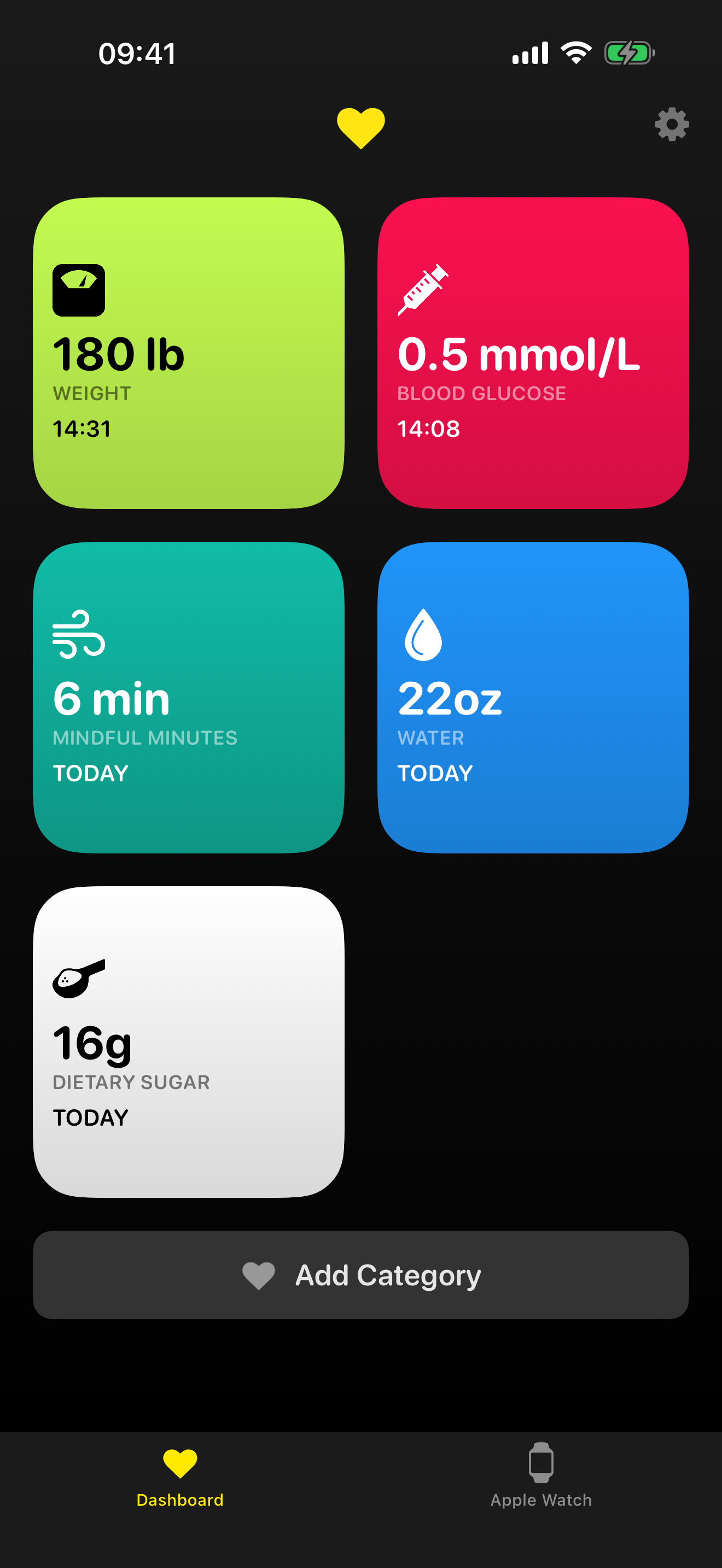
On your iPhone, you can also add a HealthFace widget to the Home Screen or Lock Screen to see a total, or tap it to log a drink. To put other stats on your watch face, see how to show your weight (or any Health stat) on your Apple Watch face.
HealthFace is $1.99 once, with no subscription, for iPhone, iPad and Apple Watch. Your Health data stays on your devices.