How to show your weight (or any Health stat) on your Apple Watch face
Your iPhone's Health app can hold hundreds of kinds of data: weight from a smart scale, blood pressure from a cuff, glucose readings, water, caffeine and more. Very little of it can go on your Apple Watch face. This guide covers what Apple's own complications can show, where they stop, and how to put any other Health stat on your watch face.
What Apple's own complications can show
Apple's built-in complications mostly show what the watch measures itself, such as your Activity rings, heart rate and noise level, plus a few things from Apple's own apps. They're free, already on your watch, and worth using where they cover what you need.
What they don't do is show arbitrary data from the Health app. There's no built-in complication for:
- Weight, body fat or BMI
- Blood pressure
- Water, caffeine, sugar or other nutrition you log
- Anything another app or device writes to Health
Some devices come with their own app and complication. For example, if your glucose comes from a continuous glucose monitor, check its companion app first, since it may already offer one.
Without a watch app: the Health app and widgets
If seeing your weight on your iPhone is enough, open the Health app, find Weight, and add it to Favorites. It then appears at the top of the Summary tab. This keeps it a tap away, but not on your wrist.
The HealthFace way
HealthFace turns any Health data type into a watch complication: weight, blood pressure, glucose, water, caffeine and more than 100 others. You choose the data on your iPhone, then add it to a watch face like any other complication.
1. Get your weight into Health
If you use a smart scale, make sure its app is allowed to write to Health. Otherwise you can log your weight yourself, in the Health app or in HealthFace on your iPhone, iPad or Apple Watch.
2. Set up the complication on your iPhone
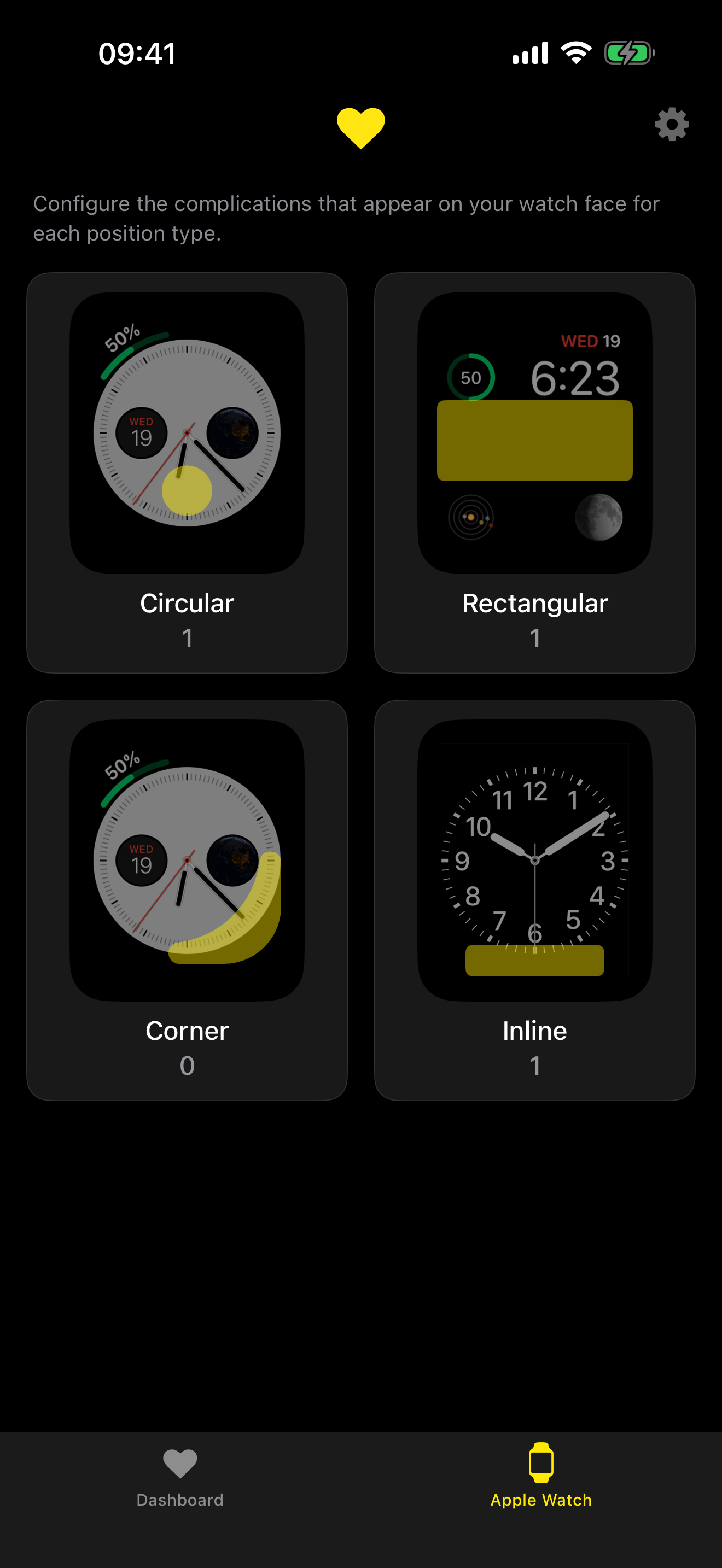
- Open HealthFace on your iPhone and go to the Apple Watch tab.
- Choose the shape you want: Circular, Rectangular, Corner or Inline. Which ones you can use depends on your watch face.
- Tap Add Complication and choose Weight. Allow access to Health if asked.
- Optionally, change the units, set a Target (circular and corner complications show it as a gauge), or set the Tap Action so tapping the complication opens straight to logging a new weight.
3. Add it to your watch face
- On your Apple Watch, touch and hold the watch face, then tap Edit.
- Swipe to the complications screen and tap the slot you want.
- Scroll to HealthFace and choose the weight complication you just set up.
- Press the Digital Crown to save.
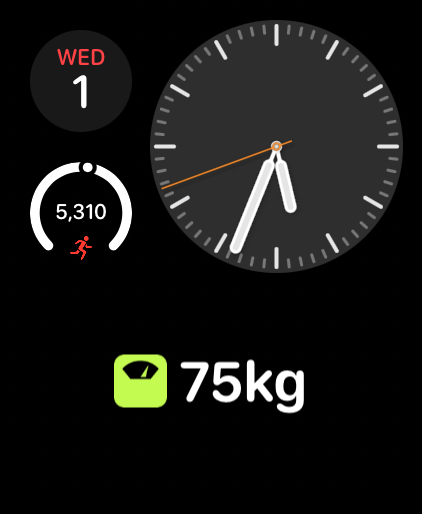
By default, the weight complication shows your latest reading. You can change it to show an average, the highest or lowest reading, or the number of readings over a date range. Rectangular complications can also appear in the Smart Stack.
Any other Health stat
The same steps work for any data type HealthFace supports. Pick Blood Pressure, Blood Glucose, Resting Heart Rate or anything else in step 2. For running totals like steps, water or caffeine, the complication adds up the day so far and resets at midnight, and you can change the date range to a week, a month or since a set time. To log drinks from your wrist, see how to track caffeine and water on Apple Watch.
HealthFace is $1.99 once, with no subscription, for iPhone, iPad and Apple Watch. Your Health data stays on your devices.